How It Works
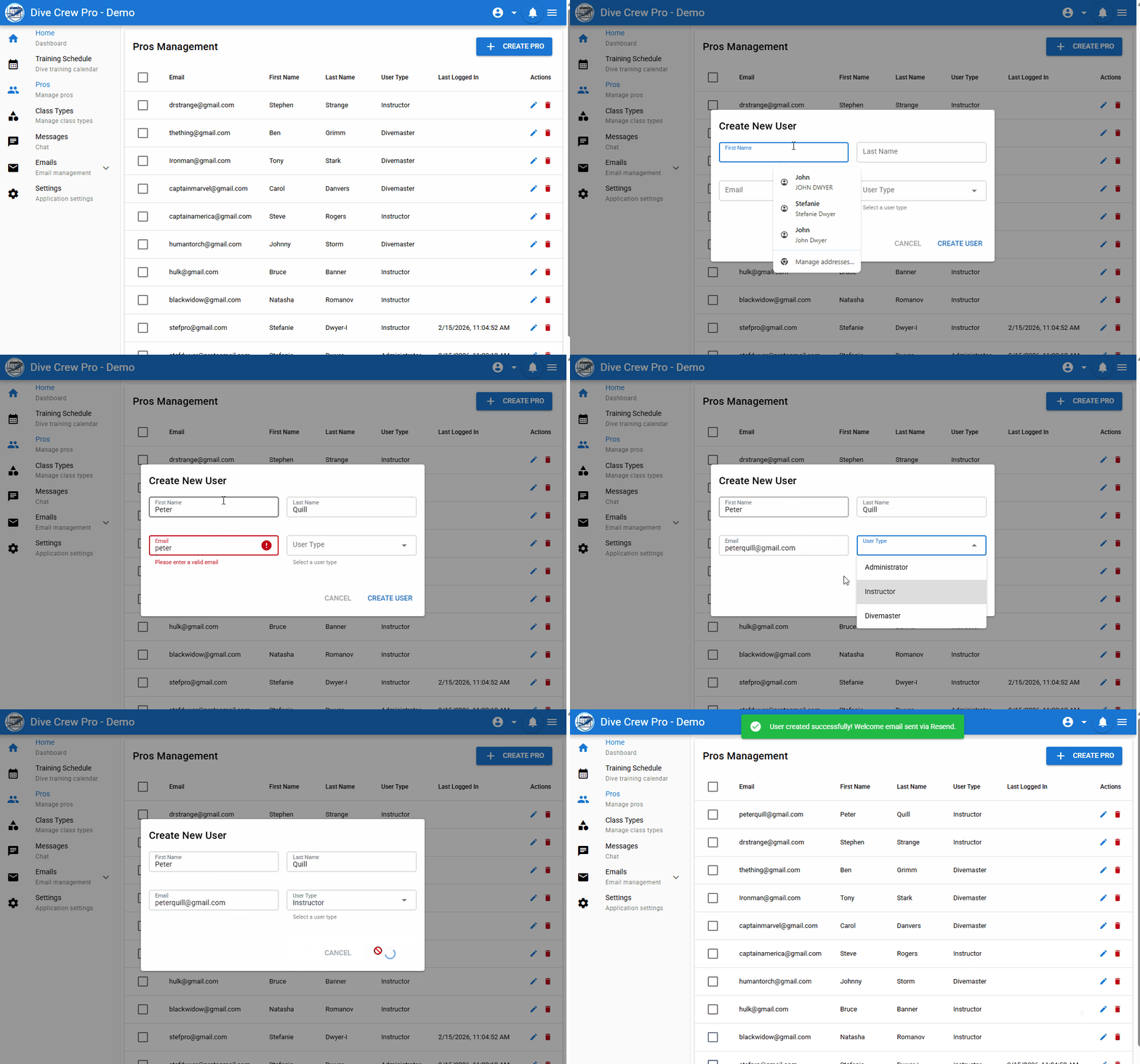
Create Pro
Create new users in the system.
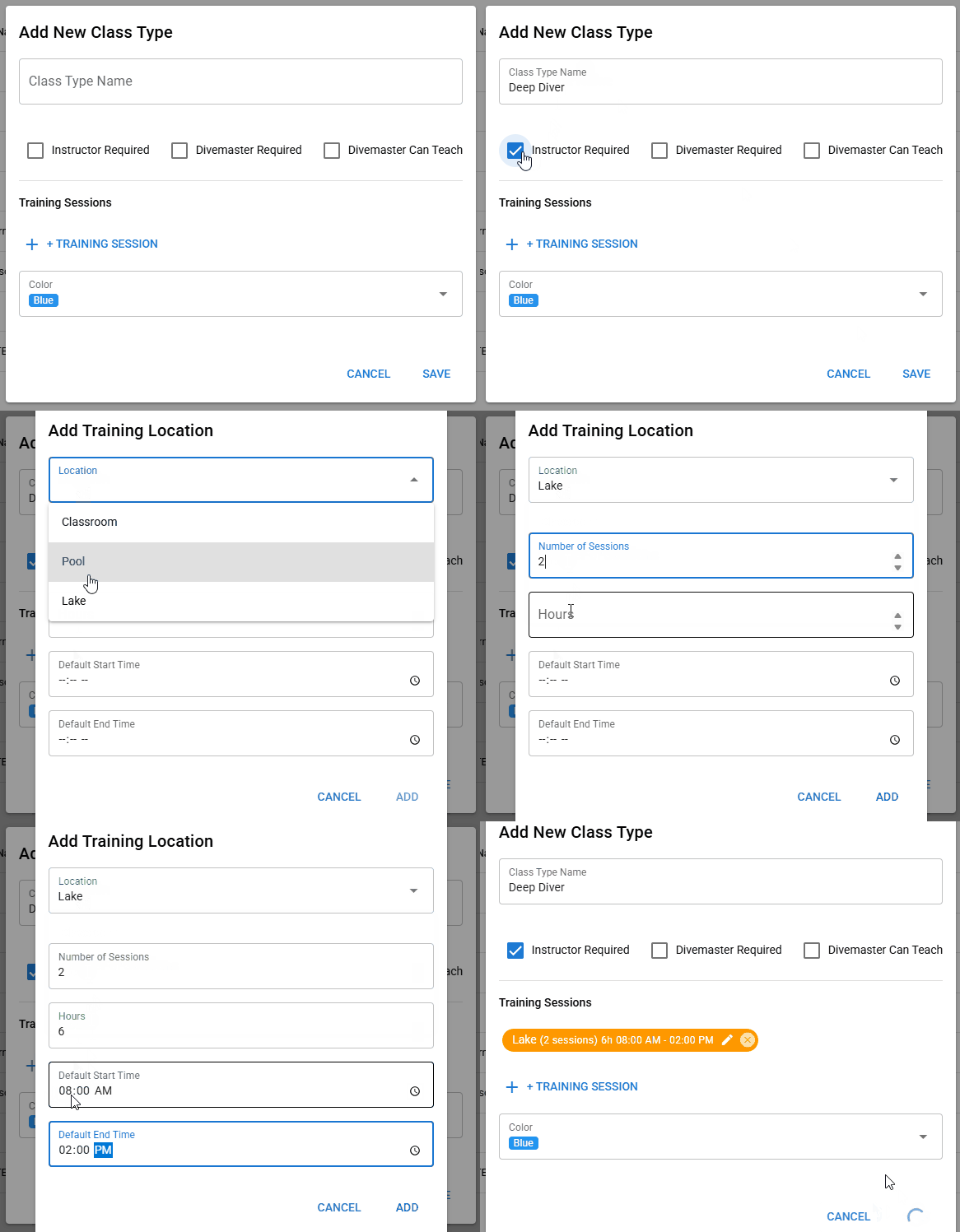
Add new class types
Add specific class types that can span multiple days and locations.
A class can be a single day, multiple days, or a combination of both. Each session can have a different location and time (for example, pool session on weeknights, open water dives on weekends).
Add a class
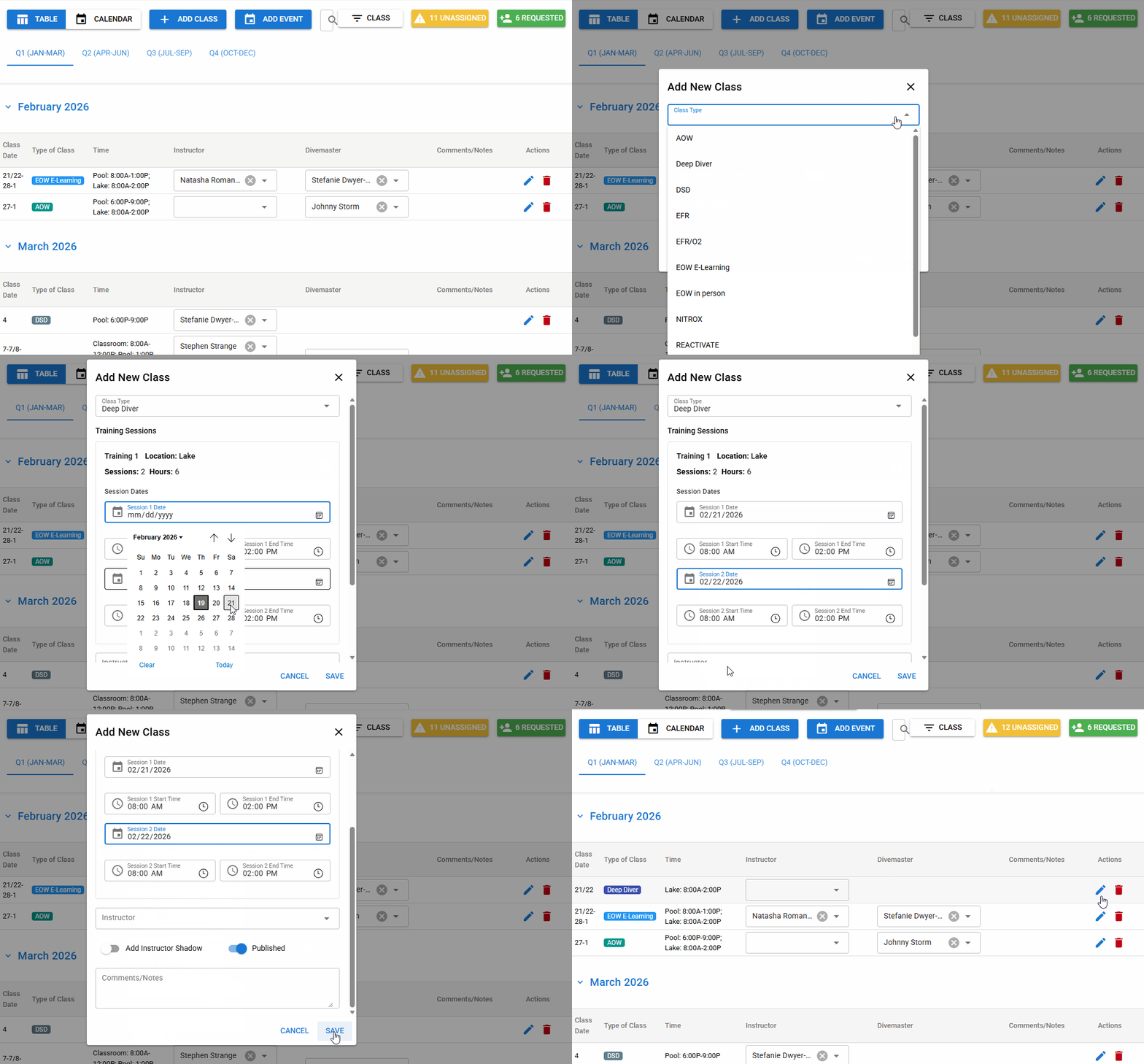
Add a new class to the schedule.
Using the Deep Diver class type you created add a new class to the schedule. Change the default details to fit your needs.
Email Pros
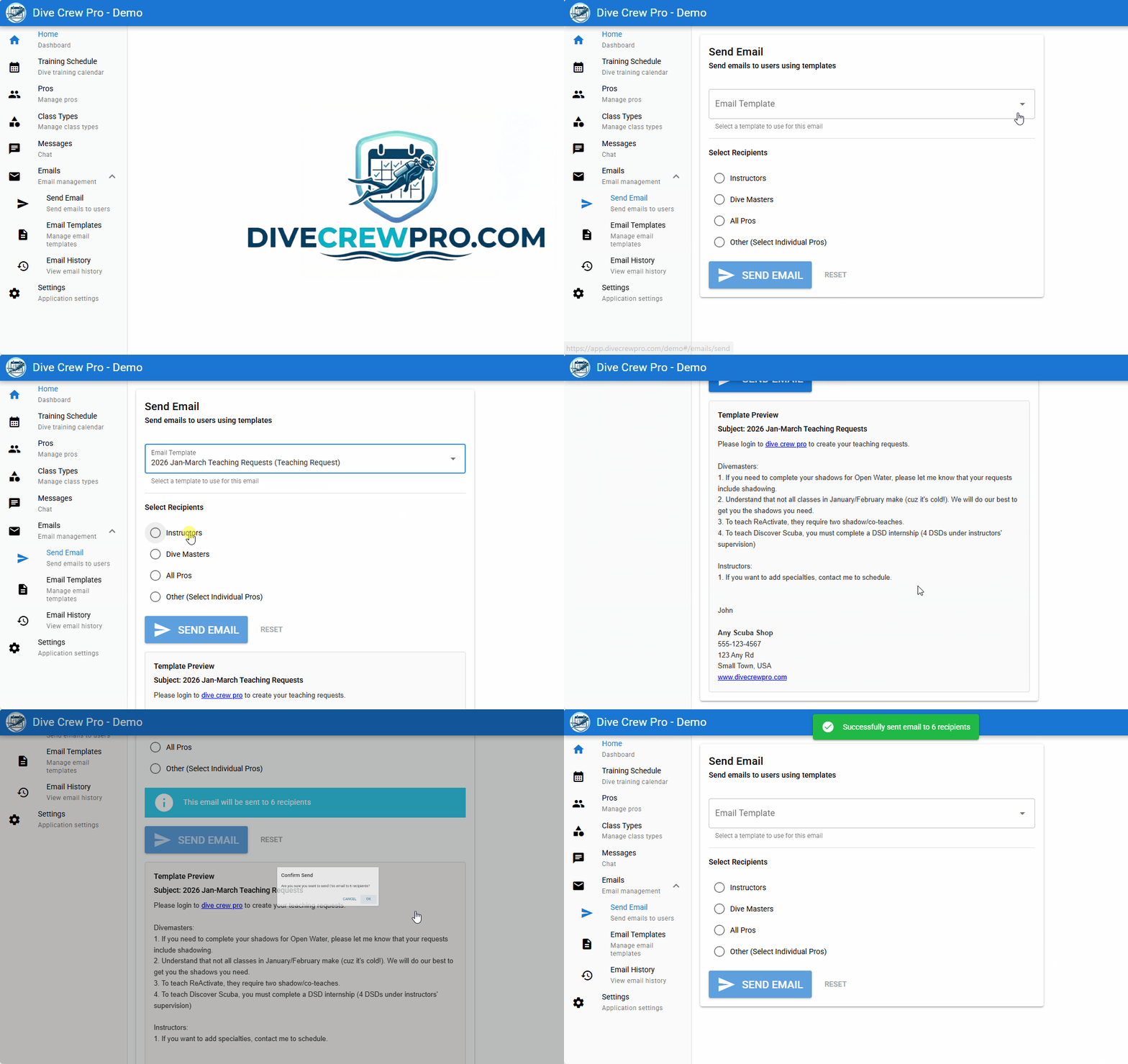
Email your staff using email templates you create.
Send emails to staff to request classes using email templates you create. Select which staff to email and the email template to use.
Pros submit requests
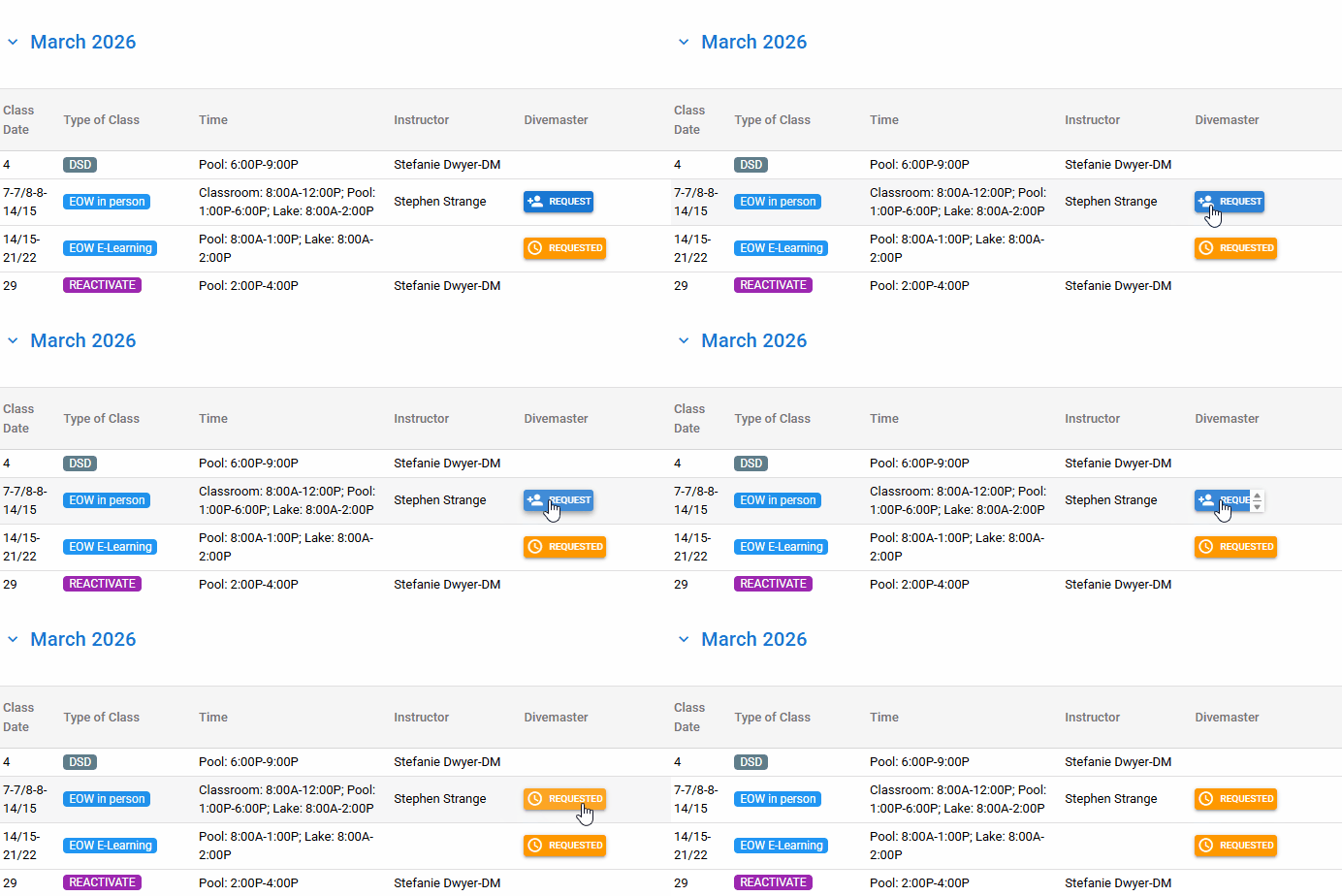
Each dive pro can submit a request for a specific class.
Each dive pro has their own account and login. When they log in they can see their assignments and classes that they can submit a request to teach in.
Assign staff to a class
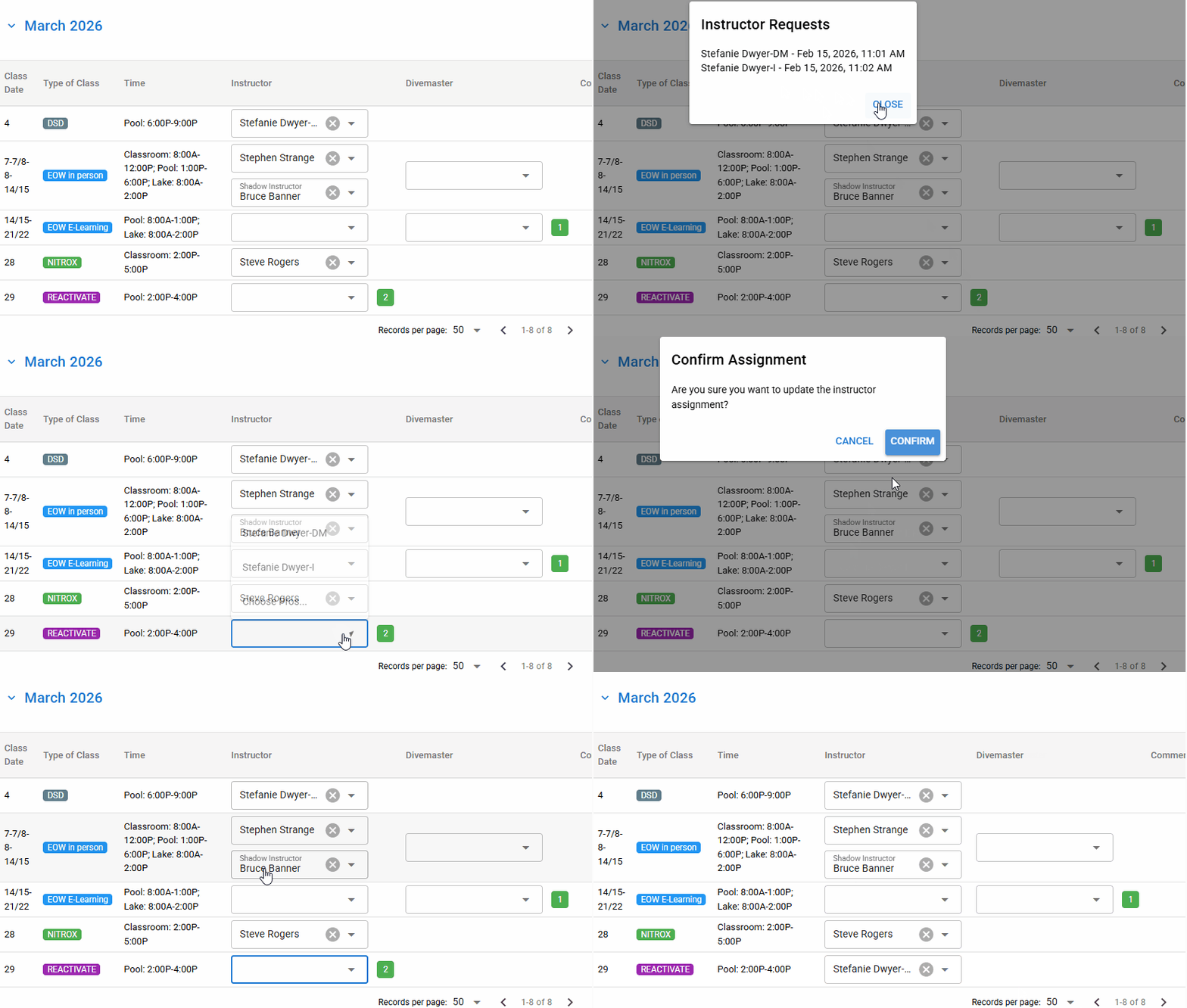
Easily assign Instructors and Divemasters to a class.
Instructors or Divemasters that have submitted a request will show up as a green box next to the class. Select the box to see who and when the request was submitted. Select the pro and send them an email to confirm their assignment.
Ready to save 10+ hours scheduling your dive staff?
Book a Demo Q&A session if you have more questions.